0

Mastering Java with OOPs: An Introduction to Object-Oriented Programming Concepts


The fundamental OOPs concepts in Java are:


Encapsulation: Hiding the internal details of an object from other objects, and providing a public interface to interact with the object. This is achieved through the use of access modifiers (private, protected, and public) to control the visibility of class members.


Inheritance: A mechanism for creating a new class based on an existing class, inheriting its properties and behavior. This allows for code reuse and the creation of a class hierarchy, making the code more organized and easier to maintain.


Polymorphism: The ability of an object to take on many forms, allowing the same method to be used with objects of different classes. This is achieved through method overloading (having multiple methods with the same name but different parameters) and method overriding (having a method in a subclass that has the same name and parameters as a method in its superclass).


Abstraction: Hiding the implementation details of a class and exposing only the necessary information to the user. This is achieved through the use of abstract classes and interfaces, which provide a blueprint for other classes to follow.


Association: The relationship between two classes, where one class has a reference to an instance of the other class. This can be unidirectional or bidirectional, and can be further classified as a one-to-one, one-to-many, or many-to-many relationship.


Aggregation: A special type of association where one class is a part of another class. For example, a "Department" class may have multiple "Employee" objects, but the "Employee" objects can exist independently of the "Department" class.


Composition: A stronger form of aggregation, where one class is made up of multiple instances of other classes. The objects of the composing class cannot exist independently of the composed class.


By utilizing these concepts, Java developers can write organized, reusable, and maintainable code.
More
1

java computer programing language history and its overview

java computer programming language history and its overview


Java is a high level computer Programming language developed by James Gosling at Sun Microsystems and was released in 1995.

Special features of Java is that we can write once, run anywhere. Meaning that compiled Java code can run on all platforms that support Java without the need for recompilation.

Initially it was called Oak after an oak tree that was outside Gosling's office. Later it was renamed to Java.

At start Java was designed and developed for small computing devices but later it was adopted but many other platforms. Right now billions of deceives are using Java in different platforms.

Example :

Mobile Applictions : Java is used in mobile phones. Currently Android and Java ME are used for creating mobile applications.

Web Applications : Java is used in web sites to create dynamic pages. Java uses struts, servlet, jsp etc. technologies for creating web applications.

Computer Applications : Java is also used in developing Computer application or Desktop application.

to know more about Java programming language visit Introduction to Java  
More
0

Boolean data type and its exmples in java programming


  • Boolean is a primitive data type.
  • Boolean is the smallest data type in Java which is made up of only 1 bit.
  • Boolean data type represents only two possible values -  True and False.
  • The default Boolean value is False.

Syntax to Declare Boolean variable :

 boolean <variable name> = <default value>;

Example:

  boolean x = true;
  boolean y = false;

Simple Sample Program Describing Boolean Data Type:

  public class Main {
    public static void main(String[] args) {
      boolean x = true;    
      System.out.println("x is " + x);

      int y = 5;
      boolean z = (y > 15);
      System.out.println("z is " + z);
      }
    } 

Output:

  x is true
  z is false

The above is a simple example for Boolean data type in Java programming and click the link Primitive Data Type to learn more about other Data types in Java.
More
0

Download Eclipse Software And Installing Android SDK for Android Application Development

This tutorial is to explain how to Setup Android SDK with Eclipse. You may find many website which explains how to setup android development in eclipse and i tried to make the tutorial simple by adding images to it. Before we move forward with the tutorials we must know the system requirement Android SDK and they are listed below.


System Requirement For Android SDK :
Operating Systems
  • Windows XP (32-bit), Vista (32- or 64-bit), or Windows 7 (32- or 64-bit)
  • Mac OS X 10.5.8 or later (x86 only)
  • Linux (tested on Ubuntu Linux, Lucid Lynx)
  • GNU C Library (glibc) 2.7 or later is required.
  • On Ubuntu Linux, version 8.04 or later is required.
  • 64-bit distributions must be capable of running 32-bit applications.


1. Eclipse 3.6.2 (Helios) or greater
   Note: Eclipse 3.5 (Galileo) is no longer supported with the latest version of ADT.
2. Eclipse JDT plugin (included in most Eclipse IDE packages)
3. JDK 6 (JRE alone is not sufficient)
4. Android Development Tools plugin (recommended)
5. Not compatible with Gnu Compiler for Java (gcj)

Other development environments

1. JDK 6 (JRE alone is not sufficient)
2. Apache Ant 1.8 or later
3. Not compatible with Gnu Compiler for Java (gcj)
   Note: Some Linux distributions may include JDK 1.4 or Gnu Compiler for Java, both of which are not supported for Android development.

The above are the System Requirement for Android SDK and lets move on with the tutorial. Follow the below given steps to Setup Android SDK in Eclipse.

Step 1 : Download Android SDK And Unzip It

First step is to download Android Software Development Kit(SDK) and unzip the file to your specified folder. You can download Android SDK from Android SDK download page. After the download is finished you need to open the zip file and unzip the file to any of your specific folder.

Note : while unzip SDK file choose a folder location where the file wont get deleted because this file will be used by eclipse later.

Step 2 : Download Eclipse And Run Eclipse IDE

Now you need to run Eclipse to install Android SDK and if you don't have Eclipse IDE in your system then you can download Eclipse by Clicking Here. You can download latest version of Eclipse IDE from the given website and the website will look like below given image.

download eclipse for android
After finishing the download of Eclipse IDE, Unzip the file and open the unzipped folder and run the Eclipse.exe file. The below image will occur and Eclipse IDE will open.

eclipse juno
You need to select a workspace where all your projects and related files will get stored. Click Browse as shown in the blow image and select a folder of your choice where all your files and project will get stored.

eclipse work space
3. Installing Android Development Tool (ADT) Plugin To Eclipse :

Once you open Eclipse and set Workspace for it then you can install Android Development Tool (ADT) plugin using few simple steps as shown below.

   i) Start Eclipse and select Help -> Install New Softwares... as shown in the below image.


install new software in eclipse

   ii) Install window will appear in that click Add button. Add Repository window appears.

   iii) Add Name as Android and Location as https //dl-ssl.google.com/android/eclipse/  in Add Repository window and press OK .

install plugin in eclipse
   iv) Now you will see the Developer Tools in the Install window.

   v) Press Select All and press Next button.

install plugin in eclipse juno
   vi) Now you need to select file location and click Next button to install SDK.

configure android in eclipse
   vii) In Choose Packages To Install window select Accept All and click Install button.

install android sdk in eclipse
In the Android SDK Manager window, you can see a list of Android versions available and Extra tools. You can download and use any Android version but its better if you start using Android 2.1 which is the basic version that support most of the Android devices.

android sdk manager
Step 4: Configuring Android SDK

Now after downloading Android SDK and installing Android Development Tool plugin next step is to Configuring Android SDK. Follow the below steps

   i) Select Window -> Preferences in Eclipse.


   ii) In SDK Location select the folder location where you have saved the SDK file which we unzip on Step 1 and we need to select a SDK from it and press Apply button and then finally click OK button.

configure android sdk

 Step 5 : Creating Your Android Virtual Device

   i) Lastly we need to create the Android Virtual Device that will be our Android Emulator through which we can run and test our Android Projects in our PC.

   ii) You can create Android Virtual Device by clicking on the icon on Eclipse as shown in the below or you can select it by clicking on Window -> AVD Manager.

android virtual device
   iii) Now Android Virtual Device Manager window will open and there you can see a New button on the right side. Click the New button.

   iv) Create new Android Virtual Device Window will Appear and it has Name, Target and other options in it.

   v) In Name write any name which you would like to use and in Target select the Android Version which you would like to use in your Android Emulator and leave the other options as it is and finally click on Create AVD.

Now you can start programming Android applications and when you run the application, the application will be executed in Android Emulator.

android emulator windows

android 4.0
More
0

What is Android

what is android operating system, about android

Android is a Linux based operating system mainly created for mobile phones such as smartphone and tablet computers. Android operating system is also used in embedded systems such as networking equipment, smart TV systems including set top boxes and built in systems and various devices as varied as house hold appliances and wrist watches.

Android Inc was started in Palo Alto, California, United States on October 2003 by Andy Rubin. Google bought Android Inc on August 17, 2005. With 500000 new Android activation's a day, it is becoming the dominant player in mobile operating system and now majority of mobile device use Android Operating System in it.

Android Versions :

Android Released its  first version "Astro" on September 23, 2008 and since then it has been updating frequently which fixes bugs of previous versions and improves performance by adding new features. Below are the list of Android version released till date.

1. Astro was released on November 5, 2007

2. Bender was released On February 9, 2009

3. Cupcake was released on April 30, 2009

4. Donut was released On September 15, 2009

5. Eclair was released On October 26, 2009

6. Froyo was released On May 20, 2010

7. Gingerbread was released On December 6, 2010

8. Honeycomb was released On February 22, 2011

9. Ice Cream Sandwich was released on October 19, 2011

10. Jelly Bean was released on July 11, 2012

This are the Android versions released upto date and Each version after Astro and Bender is named in alphabetical order after a dessert or sweet treat, with "Cupcake" being the first and every update since following this naming convention.
More
0

Compile And Run A Java Program Using Command Prompt

The following tutorial is going to take you step-by-step with the process of compiling and running java program. The easiest method to understand is to compile and run these programs on your own. I chose to make this because I've come across a lot of java beginners who does not know how to compile and run a java program.

To start with, we need to have JDK installed on our PC. You can easily download JDK from java website or you can also check Tutorial To Download And Install Java In Windows.

Compile Java Program Using Command Prompt :

Before Java virtual machine (VM) can run a Java program, Java source code needs to be compiled into byte-code using the javac compiler. In order to compile a Java source code of file helloworld.java you should do the following steps.

1. open cmd(command prompt) from run.
2. open directory in command prompt in which your java file is stored.
3. compile your java file using javac command.

Syntax To Compile A Java Program :
javac FileName.java

Example :
javac helloworld.java

4. If there are no errors in your source file, the Java compiler will produce .class file. For instance, the results of a successful compile of helloworld.java will produce a byte-code version of the class in a file named helloworld.class.

Running A Java Program Using Command Prompt :

1. After you have successfully compiled your Java source code, you'll be able to invoke the Java Virtual Machine to run your program byte code.
2. You can run a java program in command prompt using java command.

Syntax To Run Java Program In Command Prompt :
java FileName

Example :

java helloworld

Video Tutorial To Compile And Run A Java Program Using Command Prompt :

More
0

Video Tutorial To Set Path For Java In Windows Operating System

This Tutorial is about how to set a path for java in windows operating system. You need to install java first to set a path. You can get details of how to install java from Tutorial To Download And Install Java In Windows .


Also check Image Tutorial To Set Path For Java In Windows.
More
1

Primitive Data Types In Java

Definition :

- A Data Type is the characteristic of a variable that determines what kind of data it can hold.

Java comes with eight primitive data types to handle simple data values. A primitive type is predefined by the language and is named by a reserved keyword. The eight primitive data types supported by the Java programming language are listed below.


boolean :

The boolean data type has only two possible values: true and false. We use this data type for conditional statements. true and false are not the same as True and False. Boolean may not be cast into any other type of variable nor may any other variable be cast into a boolean.

Example :  boolean a = true ;

byte :

The byte data type can be useful for saving memory in large arrays, where the memory savings actually matters. It has a minimum value of -128 and a maximum value of 127.

Example :  byte a = 200 ;

short :

The short data type is a 16-bit signed two's complement integer. It has a minimum value of -32,768 and a maximum value of 32,767.Short data type can also be used to save memory as byte data type. A short is 2 times smaller than an int.

Example :  short a = 20000 ;

int :

The int data type is a 32-bit signed two's complement integer. It has a minimum value of -2,147,483,648 and a maximum value of 2,147,483,647. Int is generally used as the default data type for integral values unless there is a concern about memory. The default value is 0.

Example :  int a = 500 ;

long :

The long data type is a 64-bit signed two's complement integer. It has a minimum value of -9,223,372,036,854,775,808 and a maximum value of 9,223,372,036,854,775,807.
This type is used when a wider range than int is needed. Default value is 0L.

Example :  long a = 100000L ;

float :

Float data type is a single-precision 32-bit IEEE 754 floating point. Float is mainly used to save memory in large arrays of floating point numbers. Default value is 0.0f.

Example :  float a = 132.5f ;

double :

The double data type is a double-precision 64-bit IEEE 754 floating point. This data type is generally used as the default data type for decimal values. Double data type should never be used for precise values such as currency. Default value is 0.0d.

Example :  double a = 123.4 ;

char :

The char data type is a single 16-bit Unicode character. Char data type is used to store any character.It has a minimum value of '\u0000' (or 0) and a maximum value of '\uffff' (or 65,535 inclusive).

Example :  char a = 'b' ;

This are the eight primitive data types in java and you can know about access specifiers which are used with this data types from Access Specifiers In Java.
More
0

Keywords In Java

Definition :

- keywords are reserved words in Java Programming which have a predefined meaning in the language and so we cannot use these keywords as variables, methods, classes, or as any other identifier in the program.


The above image shows list of all keywords used in java programming. Will learn in detail on those keywords later tutorials.
More
0

Comments In Java

Definition :

- Java comments are either explanations of the source code or descriptions of classes, interfaces, methods, and fields.They are usually a couple of lines written above or beside Java code to clarify what it does.

Java has three kinds of comments and they are traditional comments, end-of-line comments and documentation comments. Lets see in detail about it.

Traditional comments :

Traditional comments start with /* and end with */, they may span across multiple lines.Everything in between these two delimiters is ignored by the Java compiler. This type of comments was derived from C and C++.

Example :

class Demo {
public static void main(String[] args) {
System.out.println("Hello World!"); /* www.java-answers.blogspot.com */
}
}

End-of-line comments :

End-of-line comments start with // and extend to the end of the current line. The compiler ignores everything from // to the end of the line.

Example :

class Demo {
public static void main(String[] args) {
System.out.println("Hello World!"); //www.java-answers.blogspot.com
}
}

Documentation comments :

Documentation comments are processed by Javadoc tool to generate documentation from source files. Documentation comment is readable to both, computer and human and to start the comment, use /** instead of and end with */. The JDK javadoc tool uses doc comments when preparing automatically generated documentation.

Example :

/**
* Java Answers is a place to get all Java resource
* visit www.java-answers.blogspot.com
*/
class Demo {
public static void main(String[] args) {
System.out.println("Hello World!");
}
}

This is how comments are created in java and will learn more about this in next tutorial on java comments.
More
53

Access Specifiers In Java

Definition :

- Java Access Specifiers (also known as Visibility Specifiers ) regulate access to classes, fields and methods in Java.These Specifiers determine whether a field or method in a class, can be used or invoked by another method in another class or sub-class. Access Specifiers can be used to restrict access. Access Specifiers are an integral part of object-oriented programming.

Types Of Access Specifiers :

In java we have four Access Specifiers and they are listed below.

1. public
2. private
3. protected
4. default(no specifier)

We look at these Access Specifiers in more detail.


public specifiers :

Public Specifiers achieves the highest level of accessibility. Classes, methods, and fields declared as public can be accessed from any class in the Java program, whether these classes are in the same package or in another package.

Example :

public class Demo { // public class
public x, y, size; // public instance variables
}

private specifiers :

Private Specifiers achieves the lowest level of accessibility.private methods and fields can only be accessed within the same class to which the methods and fields belong. private methods and fields are not visible within subclasses and are not inherited by subclasses. So, the private access specifier is opposite to the public access specifier. Using Private Specifier we can achieve encapsulation and hide data from the outside world.

Example :

public class Demo { // public class
private double x, y; // private (encapsulated) instance variables

public set(int x, int y) { // setting values of private fields
this.x = x;
this.y = y;
}

public get() { // setting values of private fields
return Point(x, y);
}
}

protected specifiers :

Methods and fields declared as protected can only be accessed by the subclasses in other package or any class within the package of the protected members' class. The protected access specifier cannot be applied to class and interfaces.

default(no specifier):

When you don't set access specifier for the element, it will follow the default accessibility level. There is no default specifier keyword. Classes, variables, and methods can be default accessed.Using default specifier we can access class, method, or field which belongs to same package,but not from outside this package.

Example :

class Demo
{
int i; (Default)
}

Real Time Example :


This are the Access Specifier in java and we will learn in detail about these Access Specifier in future chapters.
More
1

What Are Object And How To Create Object In Java ?

Definition :

- Objects are the basic run time entity or in other words object is a instance of a class. All these objects have a state and behavior.If we consider the real-world we can find many objects around us, Cars, Dogs, Humans etc. If we consider a dog then its state is name, breed, color, and the behavior is barking, wagging, running.Software objects also have a state and behavior.

Creating an Object :

In java the new keyword is used to create new objects.There are three steps when creating an object from a class.

Declaration : A variable declaration with a variable name with an object type.

Instantiation : The 'new' keyword is used to create the object.

Initialization : The 'new' keyword is followed by a call o a constructor. This call initializes the new object.

Syntax for creating Object :

class_name object_name = new class_name();

Example :

class demo
{
int i=10;
void display()
{
System.out.println("www.java-answers.blogspot.com");
}
public static void main(String args[])
{
demo x = new demo();
x.display();
System.out.println("value of i = " +i);
}
}

Output :
www.java-answers.blogspot.com
value of i = 10

Accessing Methods Using Object :

Instance variables and methods are accessed via created objects.you can learn about Methods and how to create Methods from what are methods in java tutorial. To access a Method from the above example should be as follows:

/* First create an object */
demo x = new demo();

/* Now you can call a class method as follows */
x.display();

The above example program creates a object with name x using 'new' keyword and after creating the object we can access the method and variable of class using this objects as shown in the above program.This is how objects are created in java.
More
0

What Is Java Methods ?

Definition :

- A Java method is a collection of statements that are grouped together to perform an operation.

- A method is a set of code which is referred to by name and can be called (invoked) at any point in a program simply by utilizing the method's name.

Creating a Method :

Each method has its own name. When that name is encountered in a program, the execution of the program branches to the body of that method. When the method is finished, execution returns to the area of the program code from which it was called, and the program continues on to the next line of code.
Method Syntax :

modifier returnValueType methodName(list of parameters)
{
// Method body;
}

Modifiers : The modifier, which is optional, tells the compiler how to call the method. This defines the access type of the method.

Return Type : A method may return a value. The returnValueType is the data type of the value the method returns. Some methods perform the desired operations without returning a value. In this case, the returnValueType is the keyword void.

Method Name : This is the actual name of the method. The method name and the parameter list together constitute the method signature.

Parameters : A parameter is like a placeholder. When a method is invoked, you pass a value to the parameter. This value is referred to as actual parameter or argument. The parameter list refers to the type, order, and number of the parameters of a method. Parameters are optional; that is, a method may contain no parameters.

Method Body : The method body contains a collection of statements that define what the method does.

Example :
// Simple Method Example
public void test()
{
System.out.println("this is a simple method example");
}

This is how Methods are created in java and you can know how to access Methods using Objects from what are objects and how to create object in java . we will learn different types of methods in the later tutorials of java methods.
More
0

What Is A Java Class ?

Definition :

- Java Class is nothing but a template for object you are going to create (or) its a blue print by using this we create an object.

- In simple words we can say its a pattern which we define and every object we define will follow the pattern. class are fundamental building.

What does Java Class Consist :

  • When you create class in java the first step is keyword class and then name of the class or identifier we can say.

  • Next is class body which starts with curly braces { } and between this all things related with that class means their property and method will come here.

Class Syntax :

<access specifier> class <identifier>
{
<member>
...
}

Access Specifiers Of Class :

Java class has mainly two type of access level and they are listed below.

Default: class objects are accessible only inside the package.

Public: class objects are accessible in code in any package.

Members of Class :

The contents of the body of a class consists of a collection of <members>. Members consist of fields and methods.

Field : Things in the Java language which hold data, or hold pointers to objects are called fields. Think of fields as variables.

Method : Method is a set of statement that perform a particular task. It is similar to function is c/c++.

This are basic's of Class in java and will look in detail about Class in next tutorial.
More
0

Java 2 Complete Reference, Fifth Edition


This book is the most complete and up to date resource on Java from programming guru, Herb Schildt. Its the best book for beginners and who wants to learn entire concepts of core java. A must have desk reference for every Java programmer. This comprehensive resource contains everything you need to develop, compile, debug, and run Java applications and applets.


Download
More
10

OOPS And Its Concepts Or Properties In Java

Definition :

OOPS stands for Object Oriented Programming.Object Oriented Programming is the technique to create programs based on the real world. Unlike procedural programming, here in the OOP programming model programs are organized around objects and data rather than actions and logic.

OOPS Concept :

OOPS reduce the code of the program because of the extensive Properties.OOPS
Properties or Concepts are mainly 4 and they are listed below.

1.Encapsulation
2.Abstraction
3.Inheritance
4.Polymorphisam

lets see in detail about the concepts of OOPS.

1. Encapsulation :

It is a process of binding or wrapping the data and the codes that operates on the data into a single entity. This keeps the data safe from outside interface and misuse. One way to think about encapsulation is as a protective wrapper that prevents code and data from being arbitrarily accessed by other code defined outside the wrapper. Idea of encapsulation is to hide how a class does it but to allow requesting what to do.

Example : Medical Capsuals

i.e one drug is stored in Bottom layer and another drug is stored in Upper layer these two layers are combined in single capsual.

2. Abstraction :


Hiding non-essential features and showing the essential features

                                          (or)

Hiding unnecessary data from the users details,is called abstraction.

Example: TV Remote Button

i.e In TV Remote there are numbers, power and other buttons. We can just see those buttons,we don't see the button circuits and wirings.so non-essential features are hidden from the user.

3. Inheritance :


creating a new class from existing class is called Inheritance.reusability is main advantage in inheritance.The new classes, known as derived classes take over (or
inherit) attribute and behavior of the pre-existing classes,which are referred to as base classes (or Parent classes).

Example : Father and Son Relationship

4.Polymorphisam :


The ability to take more than one form. The abiltiy to define more than one function with the same name is called Polymorphism. In java there are two type of polymorphism.

a) compile time polymorphism (overloading)
b) runtime polymorphism (overriding).

This are the 4 main Properties or Concepts of OOPS. You can leave a comment if you have doubt in it.
More
0

Simple Hello World Java Program

This is a very simple Java program for beginners.To create a Hello World Program we need to write codes which are shown below in notepad and save it with the name HelloWorld.java. It must be sure that the file name must match the name of the class.You have to pay attention that this naming convention is CASE SENSITIVE it means that naming your file into helloworld.java WON'T work.


class HelloWorld
{
public static void main(String args[])
{
System.out.println("Hello World!");
}
}


How to Compile and Run Your Program :

javac HelloWorld.java command is used to compile the source code. A compiler is an application that translates programs from the Java language to a language more suitable for executing on the computer(byte-codes. It takes a text file with the .java extension as input (your program) and produces a file with a .class extension (the computer-language version).
Once you compile your program, you can run it.

java HelloWorld command can execute the byte code in the Java interpreter.Notice that there is no .class extension on it.

Output :


Understanding the program :

- class HelloWorld

Class is the basic building block of the java program, java codes are written in the java class.Here HelloWorld is the name of Class and you can Use Any name.
- public static void main (String args[])

This is necessary to for any class to be runnable. This function is the entry point of the execution.

public - This access modifier makes this method accessible everywhere.
static - It will make this main method invokable without creating an instance of this class.
void - void declares that the method does not return any value.
main - it is a thread which the JVM looks first and is the entry point for the program
String args[] - declares a parameter named args, which is an array of instances of the class String.

- System.out.println("Hello World!");

This command is used to print some text on the screen.The text has to be surrounded by the double quotes. In this case, "Hello World!" is being printed. Remember that almost every command in Java ends with a semicolon(;).
More
0

Tutorial To Set Path For Java In Windows

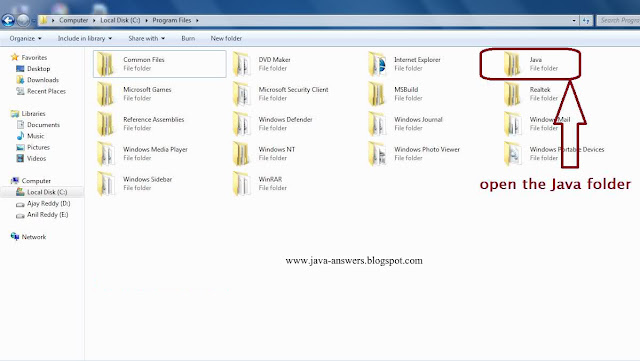
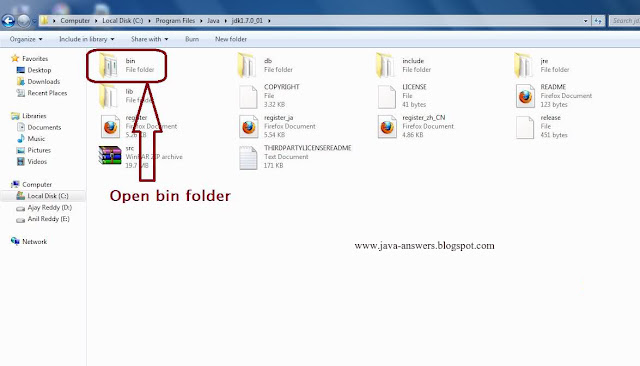
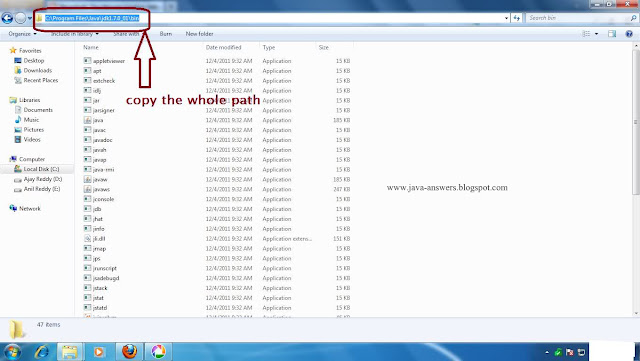
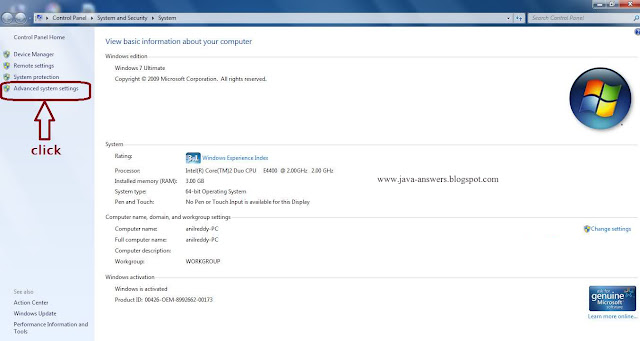
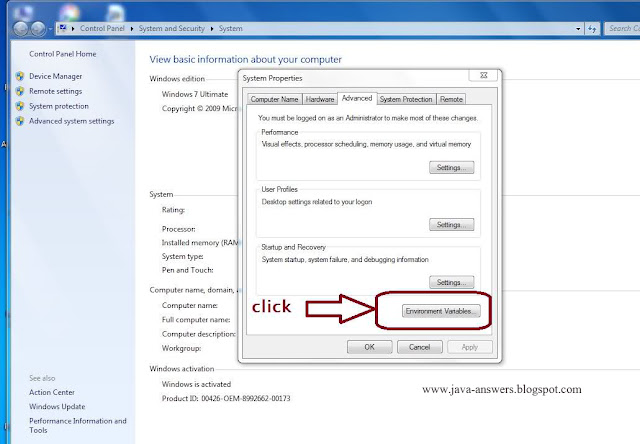
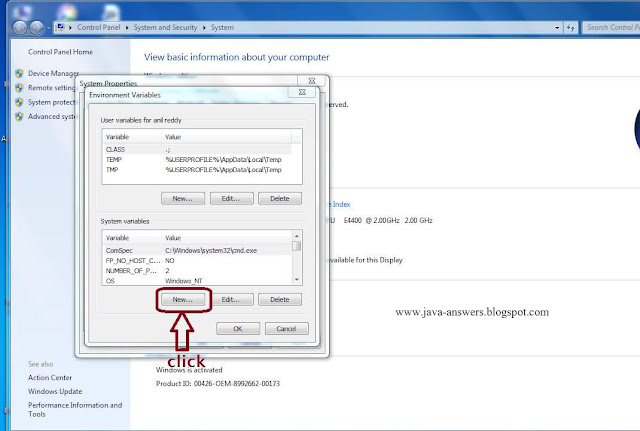
This Tutorial is about how to set a path for java in windows operating system. You need to install java first to set a path. You can get details of how to install java from Tutorial To Download And Install Java In Windows . Now After installing java go to C Drive -> Program Files -> Java and follow the below steps


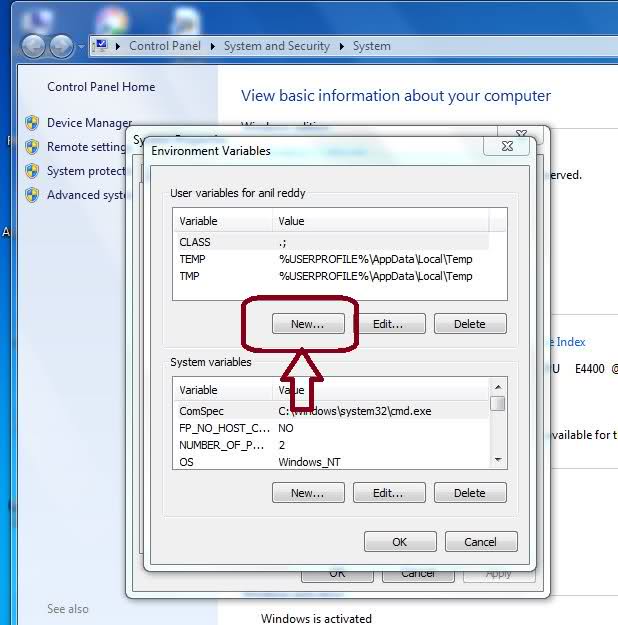
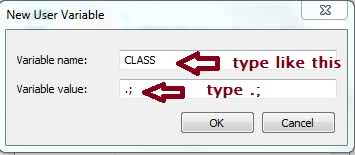
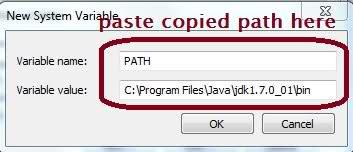
When you click on New then you will get option asking Variable name and Variable value in it. You can write any Variable name but you need to paste the path which you have copied earlier in to Variable value and click OK as shown in below image.


After clicking New in top of window you will need to write Variable name and Variable value again as shown in the below image.


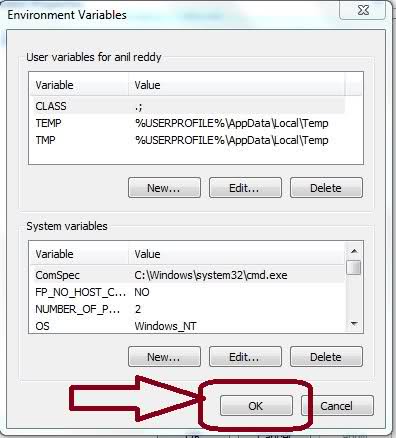
clicking on OK Java path will be successfully set on your windows and hope this tutorial will help you all and also visit Video Tutorial To Set Path For Java In Windows Operating System to see the video tutorial of it. If you have any doubts in it you can leave a comment or contact me through email.
More
0

Tutorial To Download And Install Java In Windows

This Tutorial is about how to download and install java in windows operating system. Following the below image tutorial you will successfully install java. Hope this tutorial will help you and if any doubts in it you can leave a comment.

More